Create your account and property
Before any data exists, three layers have to be in place: an organization, an account and a property. The guided setup builds all three in five steps and hands you a measurement ID at the end.
Three layers, and what each one holds#
AdPix always has this structure, and no layer can be skipped:
Organization → account → property.
- The organization is the top layer: the workspace every AdPix product shares. Users, billing and org-wide policy live here.
- The account is the grouping layer. One organization can hold several accounts — one per brand, client or team.
- The property is the one website or app you measure. Reports, key events, the time zone and the data streams belong to the property, not to the account.
The property is the container for reports; what the tag actually talks to is a data stream. One property can hold several streams, and each stream carries its own measurement ID. Never copy an ID from one property into another.
The guided setup: five steps#
The first time you sign in, an organization and an account already exist for you. Setup does not ask for them again; it lets you correct their names and build the rest of the chain.
Enter advances each step, and Skip for now sets one aside. The back button never discards what you typed — progress is kept on the server, so closing the window and coming back resumes where you left off.
What the property step decides#
These four values shape the behaviour of every later report:
| Field | What it does |
|---|---|
| Property name | A label only; it is what you see in the property switcher at the top of the console. |
| Reporting time zone | Every date window and every day, hour, week and month bucket is evaluated in this zone. |
| Currency | The unit revenue and cost are displayed in. |
| Attribution window (days) | How far back a channel touch can still be credited with a conversion. The default is 365 days. |
The property time zone is not a display setting. It defines the boundary of "today", "yesterday" and every hourly bucket. Change it later and historical reports are re-bucketed against the new boundaries, so daily numbers appear to shift. Pick the zone your business actually reports in.
What the objectives step changes#
Objectives are not a survey. Your selection is stored on the property, and AdPix uses it to define your default key events — the very events that later produce the conversion column in your reports.
Skipping the step breaks nothing; it just means you have to mark key events yourself under Admin → Key events, otherwise the conversion rate in your reports stays at zero.
The last step: the data stream#
Data collection starts with a platform. Web is available; App / server carries a Soon badge and is disabled — until then your backend can send events through the server-to-server API.
Then you create the web stream: website URL, stream name, and collection mode. There are two, and the choice is reversible:
- First-party (Tag-Gateway) — the tag is served from your own subdomain. More resilient to blockers, but it needs a DNS record and a small proxy.
- Standard (Direct) — the tag points straight at the platform. No infrastructure work, but a share of visitors is lost to ad blockers.
After the stream exists you see Enhanced measurement: page views, scrolls, outbound clicks, site search, video engagement, file downloads and form interactions. All are on by default and none require extra code on your site.
The step after that is the tag snippet itself; how to install it is in install the measurement tag.
Later: adding another account or property#
When a second business, brand or site appears, go to the hierarchy.
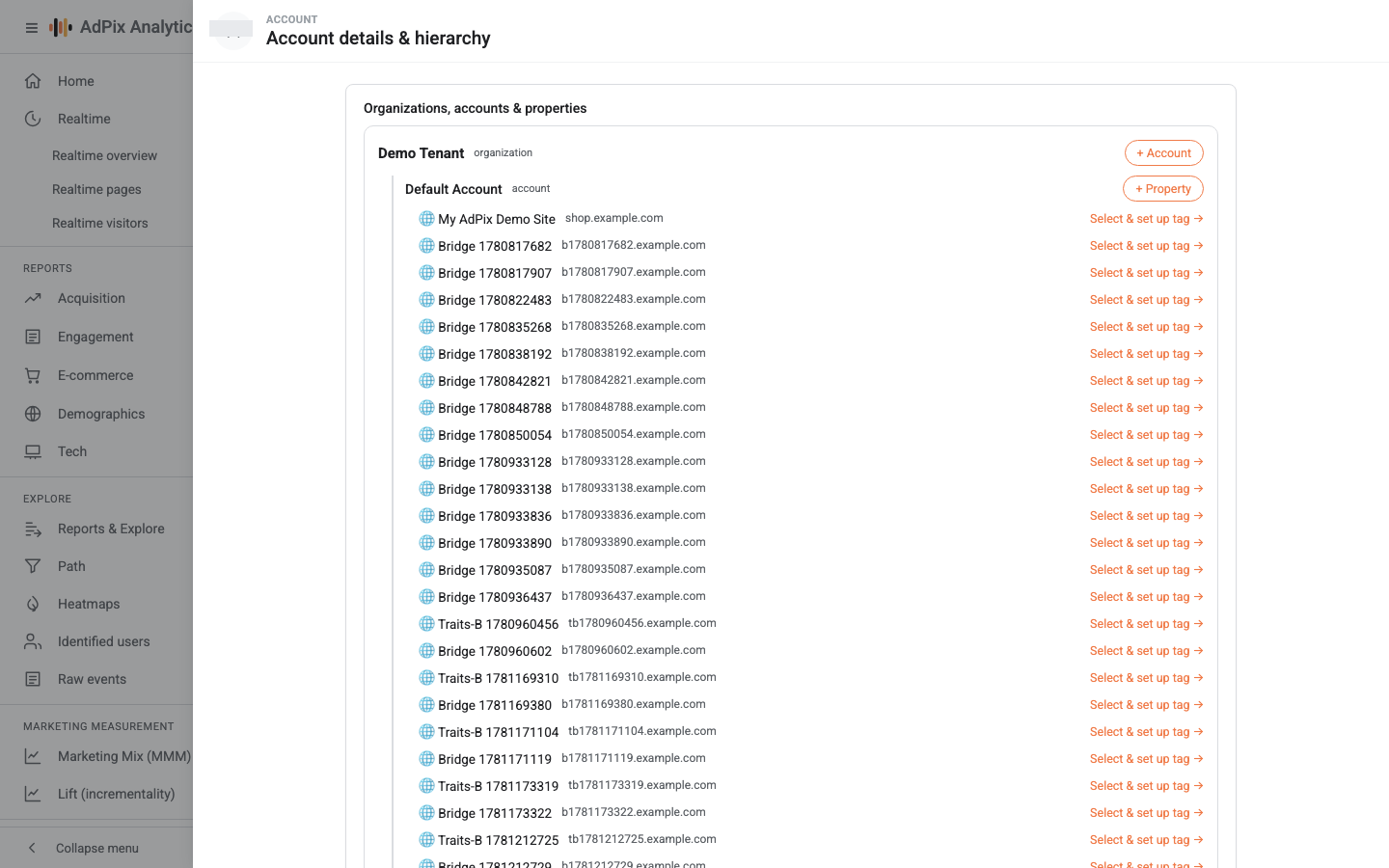
That screen shows the full tree of organizations, accounts and properties you have access to. If you see no organization at all, no membership has been granted to you yet.
If you have no property yet#
A user invited into an organization that has no property to view lands on the welcome screen rather than a permission error. Two cases:
- If you may manage the account, you can create the first property right there and go straight on to Data streams.
- If you may not, an account administrator has to create a property or grant you access; then refresh the page.
The property exists — now what#
Creating a property produces no data on its own. The chain is only complete once a data stream exists, the tag is live on the site, and the first event arrives. Next is install the measurement tag, and after that verify data is arriving.
Frequently asked questions#
What is the difference between an organization, an account and a property?
The organization is the top layer — the workspace every AdPix product shares. The account is the middle grouping layer, typically one brand, client or team. The property is the one website or app you measure, and it owns the reports.
How many properties should I create for several domains?
Create one property per thing you want reported separately. If one business spans several domains and you want a single funnel, keep one property and add the other domains to the stream's cross-domain settings instead of creating a second property.
I skipped steps - where do I finish them later?
Every setup step has an equivalent in Admin - names under Account details & hierarchy, property options under Property details, and the stream and tag under Data streams. If setup was never completed, reopening it resumes at the step you left.
Can the time zone be changed later?
Yes, under Admin - Property details. Be aware that every window bound and every day, hour, week and month bucket is evaluated in the property's time zone at read time, so changing it also moves the day boundaries in historical reports.
Thanks — your feedback helps us improve the docs.