Install the measurement tag
The AdPix tag is a short snippet that sits at the top of every page and sends events to your property. Install it once, then you only read data.
What the tag does#
The tag does exactly three things. It loads a small JavaScript file from the CDN, calls ap('init', …) once with your property's measurement ID, and from then on batches every page view and every event you define and ships them to the AdPix collector.
init on its own fires the first page_view and installs the History hook that single-page apps need. That means you do not have to write any other command to count page views — and you must not.
Adding a manual ap('page') next to init counts every page load twice. That one extra line was the root cause of the multi-count fixed in ADR-0072. The snippet the console generates today does not contain it; if an older copy is live on your site, replace it with the current one.
Where to get the snippet#
The snippet is generated per data stream, because the measurement ID belongs to the stream, not to the account. Never copy it out of a document, a support ticket or another site.
The drawer that opens is called Installation instructions. The main block sits under the Install manually heading with a RECOMMENDED marker, the stream's Measurement ID is printed right below it, and a Test installation button sits at the top of the drawer. If you have generated a Tag-Gateway bundle for this stream, a second tab offers the first-party snippet as well; the Direct tag tab stays the primary install.
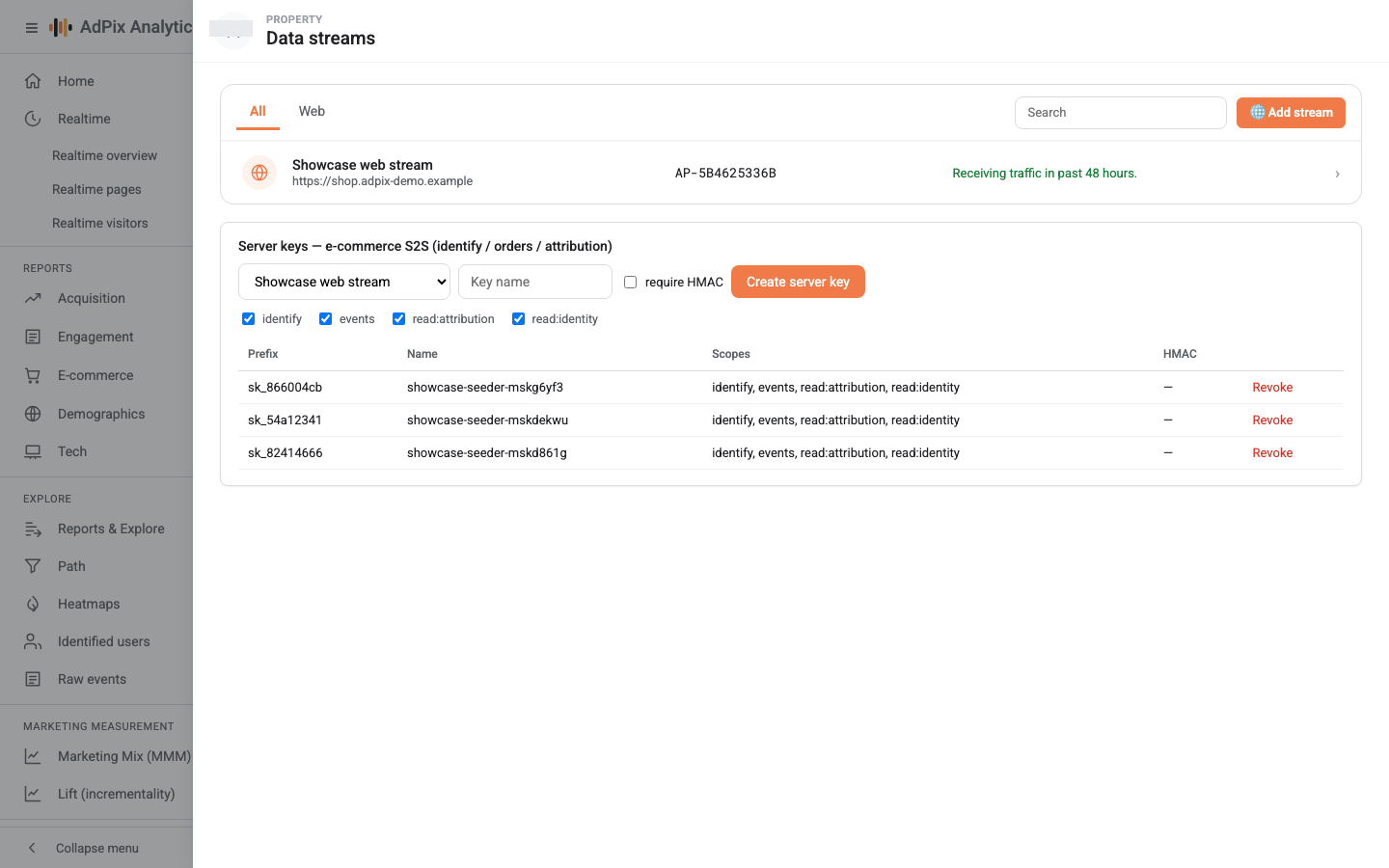
The Install tag screen in Admin shows the same block, but it builds it from the property's first data stream. If a property has several streams, the stream's own drawer is the authority. If you run several properties or several domains, repeat this for each of them.
Where to paste it#
Put the block as high in the <head> as you can — before any other heavy script. The later it runs, the more of the visitors who close the page quickly you lose.
If your site has several templates (marketing pages, client area, checkout), the tag has to be in all of them. One template left out is one completely invisible section of your reports.
If the tag is live both in the site template and in Google Tag Manager (or both directly and through the Tag-Gateway), the same page loads two copies of the script. The collector and the tracker now neutralise most of that, but the correct fix is to keep exactly one installation path.
What the snippet is made of#
The block you copy has three moving parts. You never edit them, but it helps to know what each one is.
| Part | Example value | What it does |
|---|---|---|
id |
AP-XXXXXXXXXX |
The stream's measurement ID. This is your site's identity — it rides on the script URL and is passed to init. |
v |
4 |
The tag version. It is a cache key; it is bumped on a material tracker change so browsers pick the new build up. |
endpoint |
https://collect.adpix.net |
Where events are sent. With the first-party Tag-Gateway enabled this becomes your own domain. |
What is optional after the install#
Page views are counted from the moment the tag is live. Two more commands exist for whenever you want them — neither is needed to get started.
ap('track', 'signup_completed', { plan: 'pro' });
ap('identify', 'user_8421', { email: 'ali@example.com' });
track records an event of your own with whatever properties you pass. identify attaches an anonymous visitor to a real user and back-fills the events from before they signed in onto that same user. The details are in how AdPix identifies visitors.
Confirm the install#
After you deploy, open the page with an empty cache — Ctrl + Shift + R on Windows and Linux, Cmd + Shift + R on macOS — then open Realtime in the console. Your own visit should show up within seconds.
The definitive answer is the Test installation button in that same Installation instructions drawer: AdPix reports whether an event has arrived from this stream's domain in the last 30 minutes, and when one has, the stream's state is stored as verified.
If nothing appears, check these three before anything else:
- Is the snippet really in the source of the published page, or only in your development environment?
- Is the measurement ID the one View tag instructions shows?
- Did the consent banner reject the statistics category? Under opt-in, nothing is recorded until the visitor accepts.
The full order of checks is in verify data is arriving, and the full troubleshooting path in no data arriving.
Frequently asked questions#
Where do I find the snippet?
In the console, go to Admin - Data streams, open your stream, then View tag instructions. That drawer builds the snippet with the measurement ID of that stream. Never copy it from anywhere else.
Should I paste it into the site template or use Google Tag Manager?
Either works. Pasting it into the template is the most accurate, because the snippet really does run at the top of the page. If you use Tag Manager, fire the tag on the All Pages trigger and make sure a second hard-coded copy is not still sitting in the template.
Does the tag slow the site down?
The loader is async, so it never blocks rendering. The tracker file is served from the CDN and is shared and cacheable across every site; the property identity is passed in at runtime, so there is no per-site JavaScript file to go stale.
What happens if the measurement ID is wrong?
Events are sent but never reach your property, and Realtime stays empty. Compare the ID against the one printed under the code block next to Measurement ID; it always starts with AP-.
Thanks — your feedback helps us improve the docs.