Data streams
A data stream is one tag with its own measurement ID. The stream decides which domain the tag runs on, what is measured automatically, and which server keys work for it.
What a stream actually is#
A data stream is the smallest unit of collection in AdPix: one tag, one measurement ID, one domain. A stream sits under a property, the property under an account, the account under an organization.
Everything about how data is collected is held on the stream itself, not on the property:
| On the stream | What it decides |
|---|---|
| Measurement ID | The tag's identity. It ships in the snippet and the collector resolves the organization and property from it. |
| Domain | The hostname the tag runs on. It drives the install check and the receiving indicator. |
| Collection mode | Direct tag or Tag-Gateway. Decides where the tag is served from and where the beacon goes. |
| Enhanced measurement | Which automatic events (scrolls, outbound clicks, downloads, forms, video, site search) are on. |
| Configure your domains | The cross-domain conditions that feed the linker and the self-referral exclusion. |
| Heatmaps | On or off, sample rate, modes, excluded paths and a stop date. |
| Server keys | The credentials for server-to-server sends, bound to this stream. |
That is why two sites with different settings cannot share one tag: the settings live on the stream.
Why the ID belongs to the stream, not the account#
Every beacon that leaves the browser carries exactly one identifier. The collector uses that single string to look up the organization, the property and the stream, and writes the event where it belongs. An account-level ID would leave nothing to tell one of your sites from another at that boundary.
The shape is fixed: AP- plus 10 uppercase hex characters, for example AP-A1B2C3D4E5. A unique index on that column guarantees no two streams — in any organization — share one ID.
The measurement ID is visible in every page's source and that is fine; it is not a credential. The stream's real credential is its server key, shown once when the stream is created and managed under Measurement Protocol API secrets. That one never goes in a page.
Where the list lives#
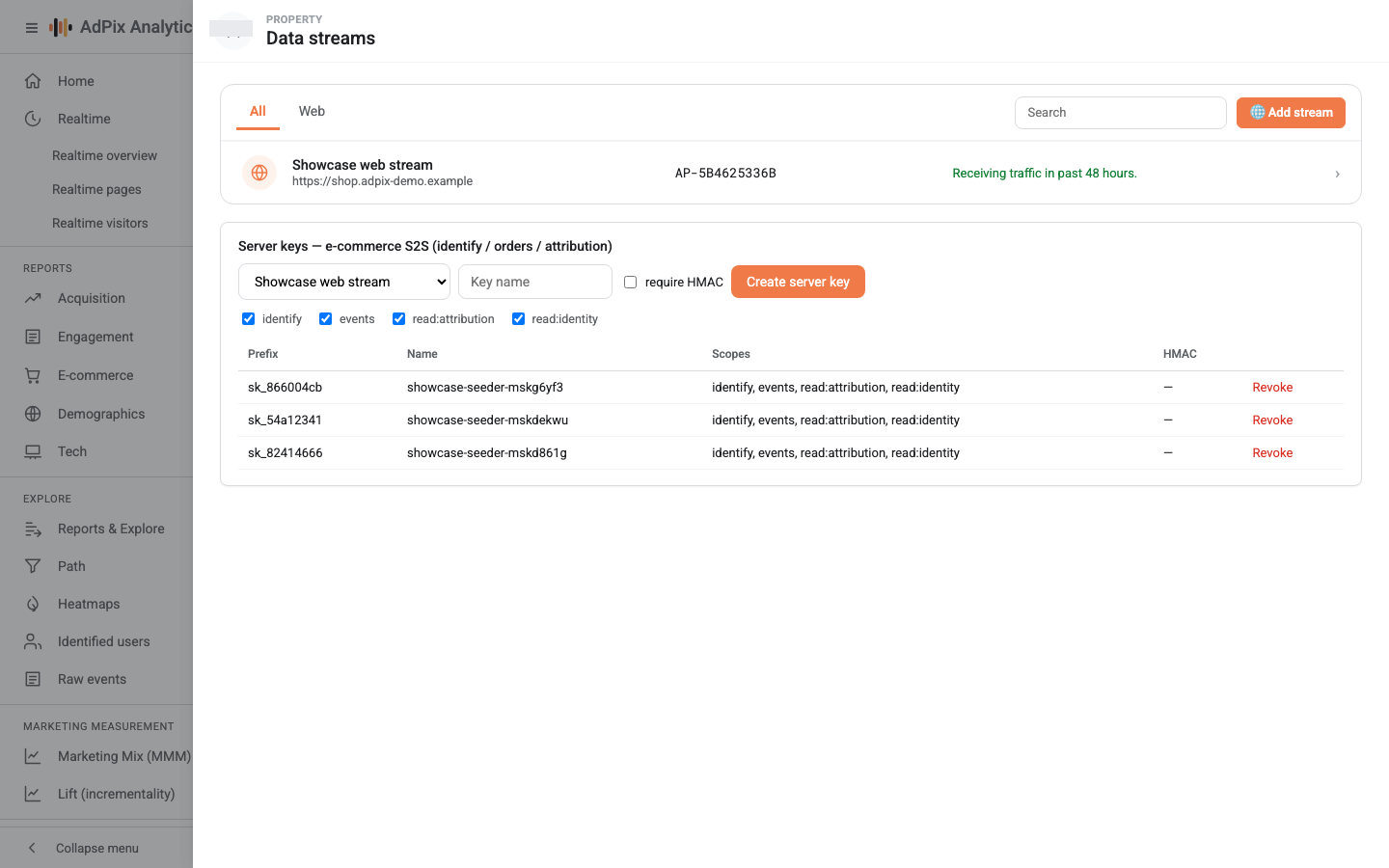
Above the list are the All, iOS, Android and Web tabs. Only web streams can be created today; the two app tabs are disabled and marked Soon. Until then an app backend can send its events through the server-to-server API.
Creating a web stream#
The installation instructions open immediately afterwards and show two things you can only get there: the tag snippet carrying this stream's measurement ID, and the server key, which is shown once. Store the key at that moment.
Name and domain stay editable afterwards. The measurement ID does not.
What is inside a stream#
Click any row in the list to open Web stream details.
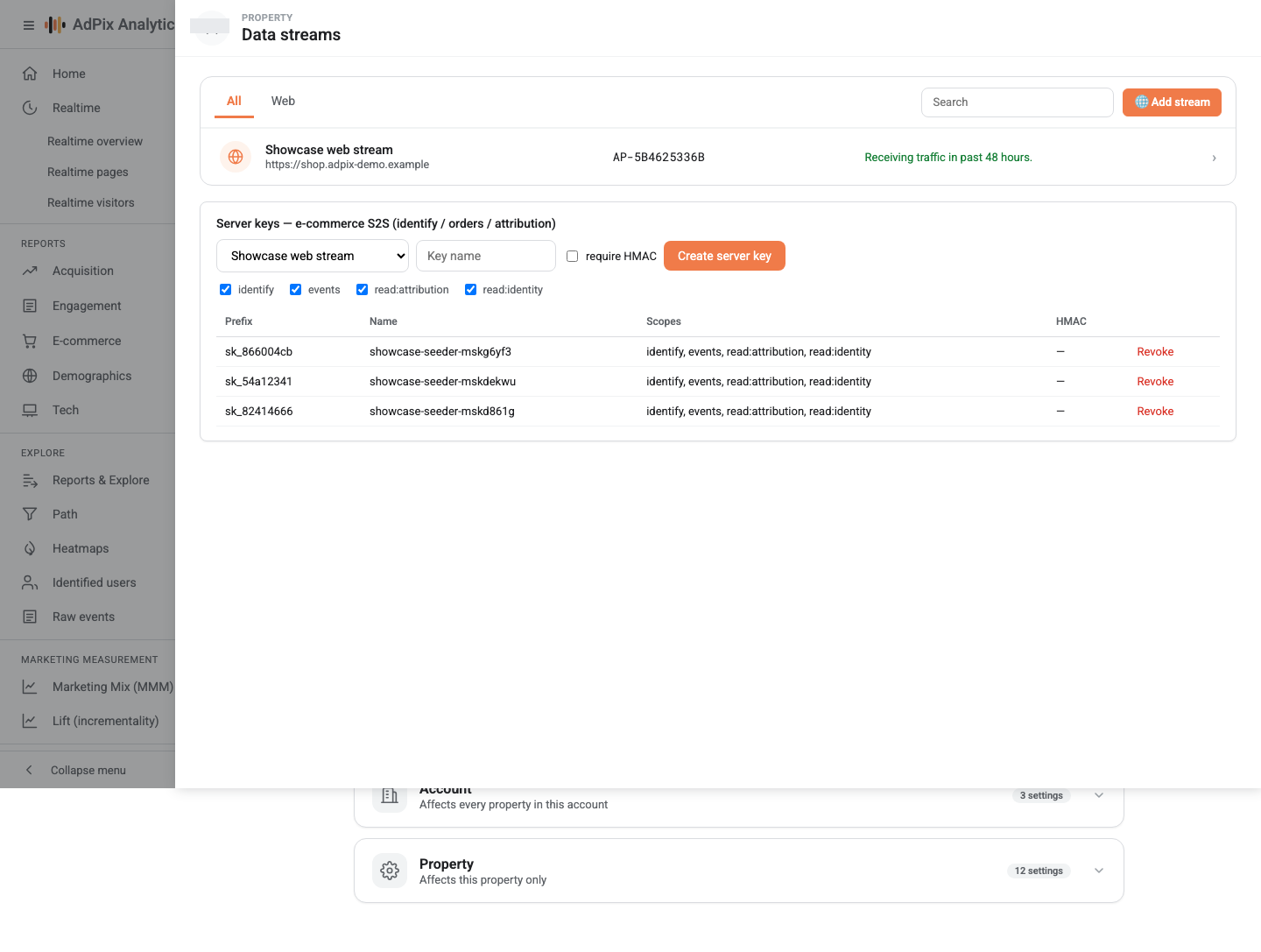
At the top is a status banner: either "Data collection is active in the past 48 hours" or the warning that collection is not active, with a View tag instructions button next to it. Below it the Stream details card shows four values — name, URL, stream ID and measurement ID — followed by these rows:
| Row | What it does |
|---|---|
| Enhanced measurement | Turns this stream's automatic events on and off. |
| Modify events / Create custom events | Takes you to the property's event settings; those are property-scoped, not stream-scoped. |
| Heatmaps | Optional click, move and scroll capture with sampling and a stop date. |
| Measurement Protocol API secrets | Create and revoke this stream's server keys. |
| Configure your domains | Cross-domain conditions. The row itself summarises how many are set. |
| Tag-Gateway (first-party) | Generate the proxy bundle and run the diagnostic for first-party mode. |
| View tag instructions | The snippet, plus the Test installation button. |
The two collection modes#
| Mode | Tag served from | Events sent to |
|---|---|---|
| Direct tag | The AdPix CDN host | The AdPix collector, cross-origin and cookieless |
| Tag-Gateway | A subdomain of yours, metrics.<your domain> by default |
That same subdomain, proxied through to the collector |
The direct tag needs no setup and is the right way to start. Tag-Gateway needs a DNS CNAME and a reverse-proxy config on your side, and in exchange both the tag and the beacon become first-party. Generating a gateway bundle never disables the direct tag: the instructions screen offers both snippets side by side and you choose one.
When you need a second stream#
This is the part of the screen that causes regret later, so be precise about the boundary:
- A genuinely different domain, or settings that must differ — create a second stream. The main site and the blog on two domains, with heatmaps on only one of them, is the classic case.
- Subdomains of the same domain — no second stream. One stream on
example.comcovers its subdomains. - Separate reports for two sites — a second stream does not do this. Create a separate property.
Events do not carry a stream id. Anything sent with the measurement ID of any stream under a property lands in the same set of reports, separable only by the page's hostname. If two sites need separate numbers, the separation has to happen at the property level, not the stream level.
One small but consequential detail: the property's primary domain is derived from the first web stream that has a domain, and is kept in sync automatically. The order in which you create streams matters here.
The receiving indicator and the install test#
Each stream in the list carries either "Receiving traffic in past 48 hours" or "No data received in past 48 hours". That indicator works off the stream's domain: events whose page hostname equals the stream's domain, or is a subdomain of it, are credited to that stream. A stream with no domain set yet counts any traffic on the property as receiving.
Test installation, in the tag instructions, is the stricter check and also persists the stream's verification status; each state is explained in verify data is arriving.
Deleting a stream#
Deleting a stream stops the tag and revokes every server key attached to it. You have to type the stream name to confirm. The events already collected stay in reports, but the measurement ID does not come back — so any page still carrying that snippet sends into nothing from that moment on. Remove the snippet from the site first, then delete the stream.
Frequently asked questions#
Is the measurement ID a secret?
No. It is visible in the source of every page on your site and is meant to be — all it does is tell the collector which property an event belongs to. The secret is the stream's server key, a credential for server-to-server sends that is shown exactly once.
Do I need a separate stream per subdomain?
No. The data heartbeat and the receiving indicator credit subdomains of the stream's registered domain to that stream, so one stream on example.com also covers shop.example.com. A second stream is for a genuinely different domain, or for settings that must differ.
If I create two streams under one property, do the reports separate?
No. Events do not carry a stream id, and every stream under a property feeds the same reporting pool. If you want separate reports, create a separate property with one stream in each.
If I delete a stream, do I lose the data it collected?
No. Deleting a stream stops that tag and revokes its server keys, but the events already collected stay in your reports. It cannot be undone, and the measurement ID does not come back.
Thanks — your feedback helps us improve the docs.