
Manage organizations, accounts and websites
The three-level structure lives in one Admin panel. This page covers what you can still change afterwards, what is locked the moment you create it, and exactly what deleting a website removes — and what it leaves alone.
This page is about doing it, not about the model#
The three-level model — organization → account → website → data stream — and why it works that way is covered in organizations, accounts and websites. This page only says where each action happens in the console, what is reversible and what is not.
Where in Admin this happens#
Open Admin from any page. The left rail carries three groups — Global, Account, Website — with the total number of settings open to you beside the heading. Above the rail is a search field (Search settings, shortcut ⌘K) that matches on setting names, and Back to reports returns you to the reporting side.
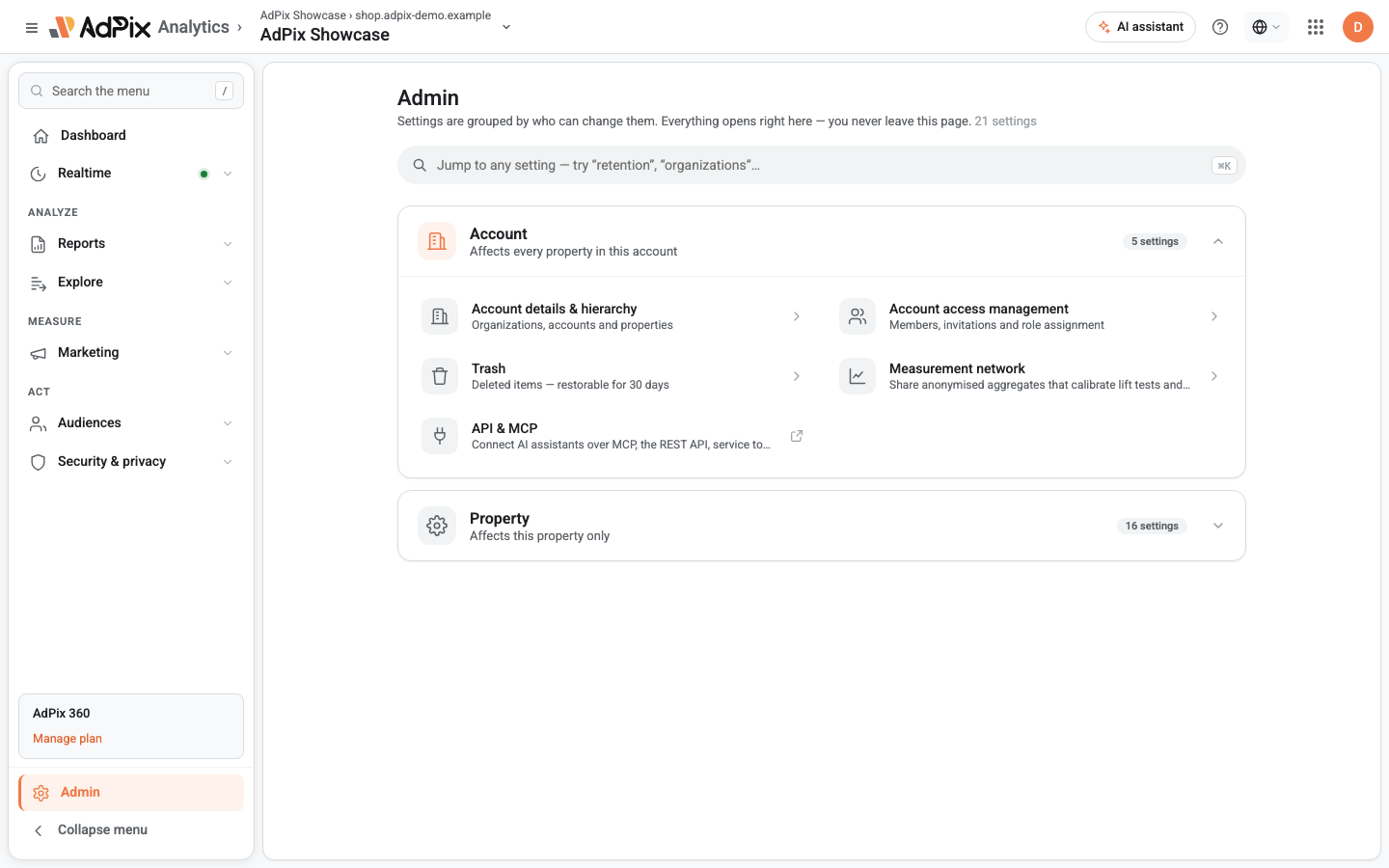
Three items in the Account group concern the structure itself:
| Item | What it does |
|---|---|
| Account details & hierarchy | View the organization → account → website tree, create accounts and websites, and pick the active website |
| Account access management | The account's members and their roles |
| Trash | Items that have been soft-deleted |
Each has a direct link: /admin?sel=hierarchy, /admin?sel=account-access and /admin?sel=trash.
Which groups you see is decided by the highest role you hold anywhere in AdPix, not by your role on the active website. The Global group is for AdPix platform administrators only, Account appears for account admin and above, Website for website admin and above. The action itself is checked again against the specific account or website — seeing an item does not guarantee you may use it everywhere.
Create an account or a website#
Account details & hierarchy shows the tree under the heading Organizations, accounts & websites. Each organization carries a + Account button, each account a + Add a new website button.
Both actions — creating an account and creating a website — require account admin or above. A website admin or an editor cannot create a website.
A brand-new website has no domain yet; the real domain is written when you create its first data stream, and until then the list shows a placeholder in its place. The full path from nothing is in create an account and a website.
What you can still change afterwards#
| What you want to change | Where | Minimum role |
|---|---|---|
| Website name | Website details → Basics | Editor |
| Reporting time zone | Website details → Basics | Editor |
| Attribution window | Website details → Basics | Editor |
| Currency | Website details → Basics | Editor |
| Excluded CIDRs | Website details → Traffic filtering | Editor |
| Domain and cross-domains | Data streams → the data stream | Editor |
| Account name or organization name | This panel: Edit details on the organization, Rename on the account | — |
If your role cannot edit, the form still opens but carries the line "Read-only — your role can view but not edit these settings." and the Save changes button is not rendered at all. Field-by-field detail is in website settings.
The organization and its first account are named automatically at sign-up (from your email's company domain, or after you for a free-mail address). Rename them here: Edit details on the organization holds Organization name (next to industry and size), and Rename on each account changes the account's name. A name can never be left blank.
The time zone does not only affect future data. Every date range and every day, hour, week and month bucket in every report is evaluated in this website's time zone, so changing it re-buckets the whole history and yesterday's numbers will shift. Get it right once.
What is locked at creation#
Two decisions are made the moment you create, and there is no way back:
- Where the website sits. It stays under the account it was created in, and that account under its organization. No move action exists — not in the console, not in the API.
- The website ID. The identifier used in URLs, keys and server-to-server requests is fixed and does not change when you rename.
If you later find that a website belongs under a different account, the only route is a new website under the right account with the tag pointed at it. The event history stays with the old website and is not transferred, so your reports split in two on that date. Sketch the account structure once before you create real websites.
Delete, Trash, and what is not removed#
Deleting a website or an account is soft: the row moves to Trash and an account admin can bring it back. Recorded events are untouched.
Open Trash from the Account group. The table — headed Trash (soft-deleted, restorable) — lists each item's type, name and deletion time, with Restore beside every row. Restoring takes effect immediately and the website returns to the tree.
Three things not to confuse with deletion:
- Collection does not stop. The tag on your site keeps sending events after the website is deleted, and those events are still written. To actually stop collection, remove the tag from the site or delete the data stream.
- No data is erased. Deleting a website is an organizing action, not a purge. Actually erasing data is a separate path, described in data retention and deletion.
- Deleting a data stream is final. Unlike a website, a data stream does not go to Trash: it and its keys are removed and its tag ID does not come back.
Both viewing Trash and restoring from it require account admin or above, and the list only covers organizations you actually administer. If you are a member but not an account admin, the item does not appear in the rail at all.
Every change here is recorded#
Every creation, rename, settings edit, deletion and restore writes a row to the audit log — with the real user, and, if someone acted on your behalf, that person recorded separately.
For a single website you read those rows in Admin → Website change history: time, actor, acting as, and action. When a number in a report suddenly moves, look here first — usually someone changed the time zone or the attribution window.
Next#
Once the structure is settled, add people: roles and capabilities says what each role can actually do, and invite people and SSO says how an invitation turns into access.
Frequently asked questions#
How do I move a website to a different account?
You cannot. A website stays under the account it was created in, and there is no move action — not in the console and not in the API. If the structure is wrong, create a new website and point the tag at it; the old website's history does not come with you.
Where do I change a website's currency?
Under Admin → Website details → Basics → Currency, like the time zone. Changing it relabels amounts and never converts them: data already sent keeps its numbers. A website created from the hierarchy tree starts on USD; the first website created during sign-up starts on rial.
Why does no group open for me in Admin?
The Account group appears for account admin and above, the Website group for website admin and above. An editor can change website settings but does not see this panel. Ask your account admin to raise your role.
Does deleting a website stop collection?
No. Deleting moves the website to Trash, but the tag installed on your site keeps sending events and those events keep being written. To actually stop collection, remove the tag from your site or delete its data stream.
Thanks — your feedback helps us improve the docs.